
 Sign in






Build your first package
29 steps, in the order you do them.

Follow it on screen.
- 1
Put the materials in the price book first
A package is made of catalog items, so anything it should include has to exist here.
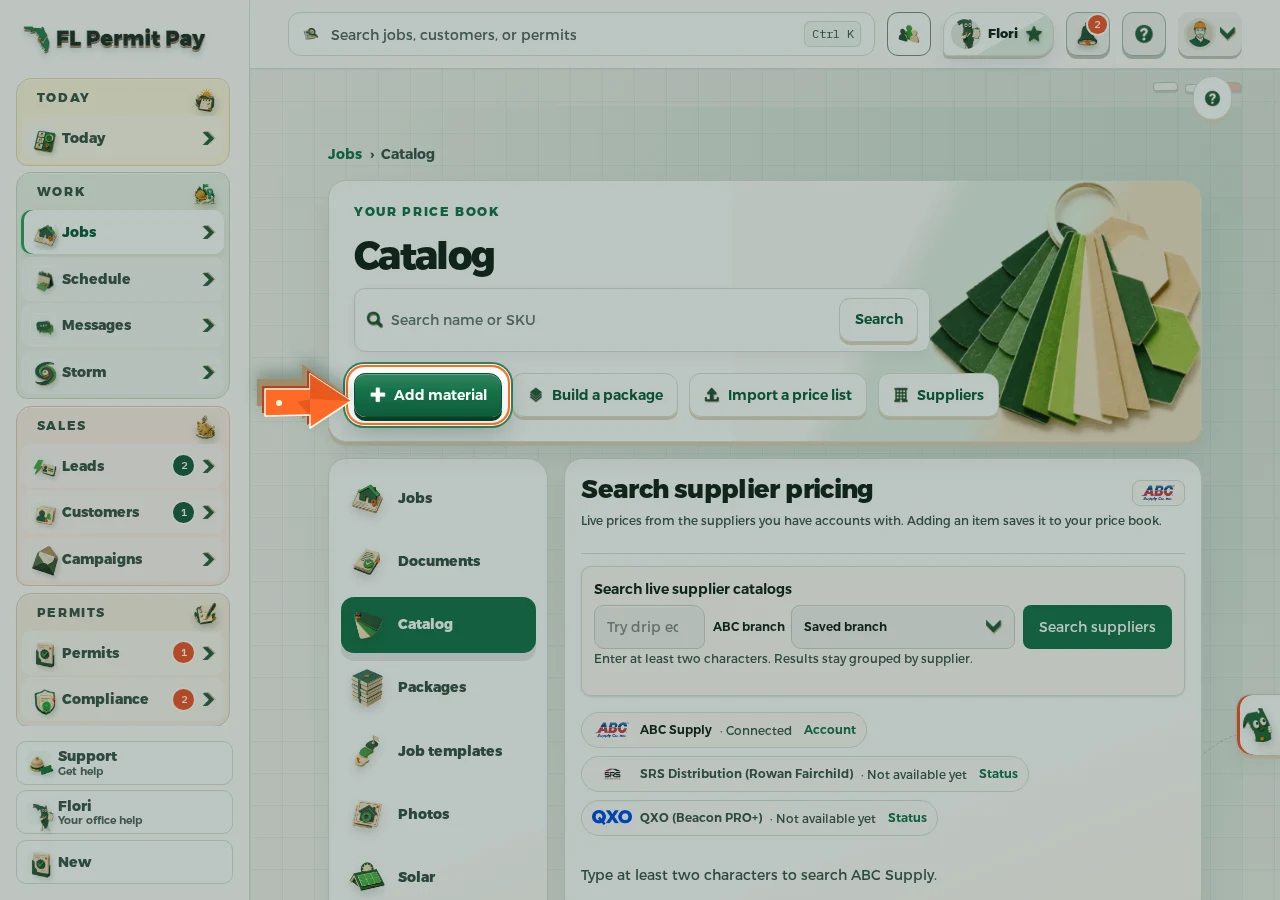
The real screen - the arrow marks the control. Tap to see it full size. - 2
Name each one the way your supplier order says it
It is what you look for on every job and what a customer reads on the proposal line.
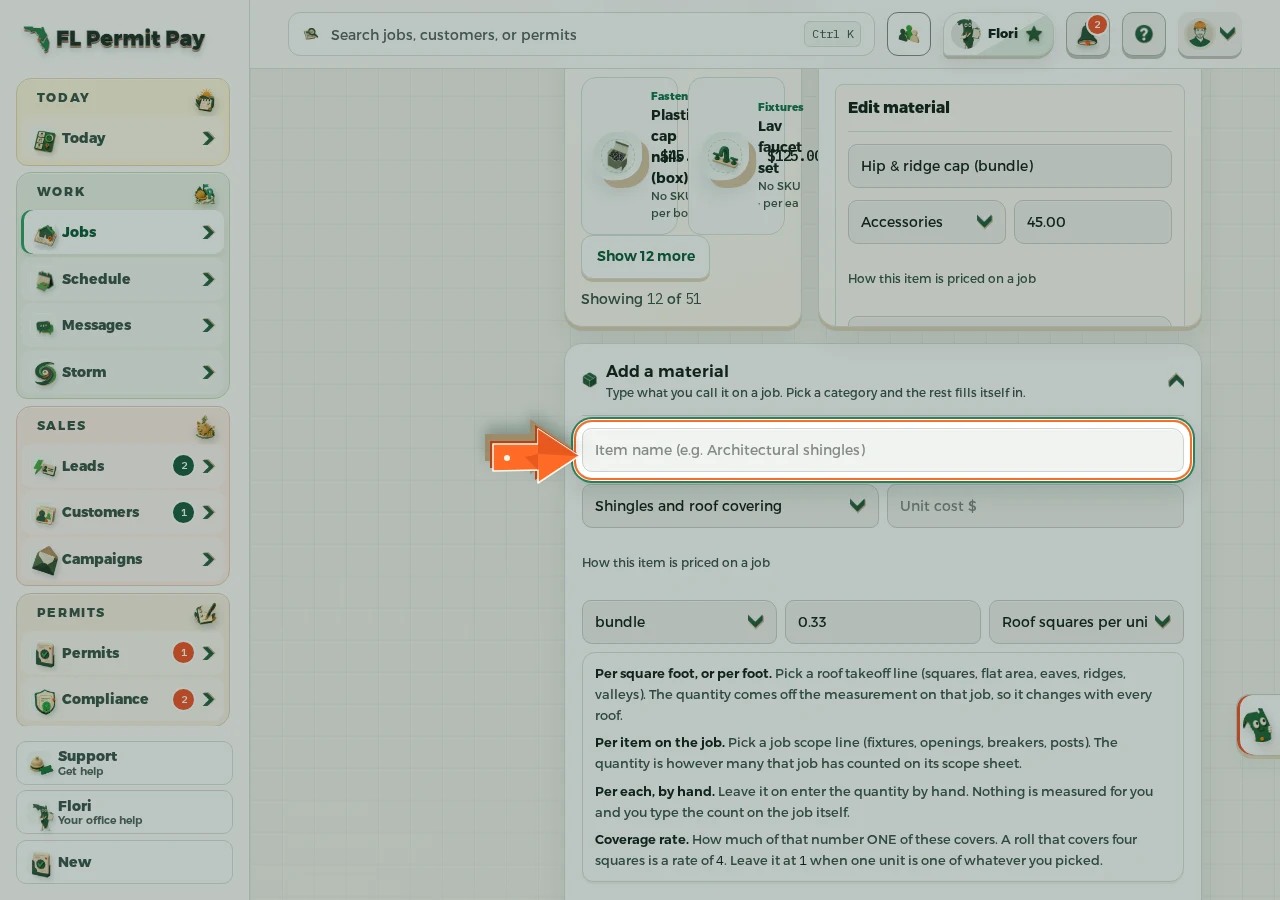
The real screen - the arrow marks the control. Tap to see it full size. - 3
Pick the category
It fills in sensible answers for the unit, the coverage and the waste below, so you correct rather than start blank.
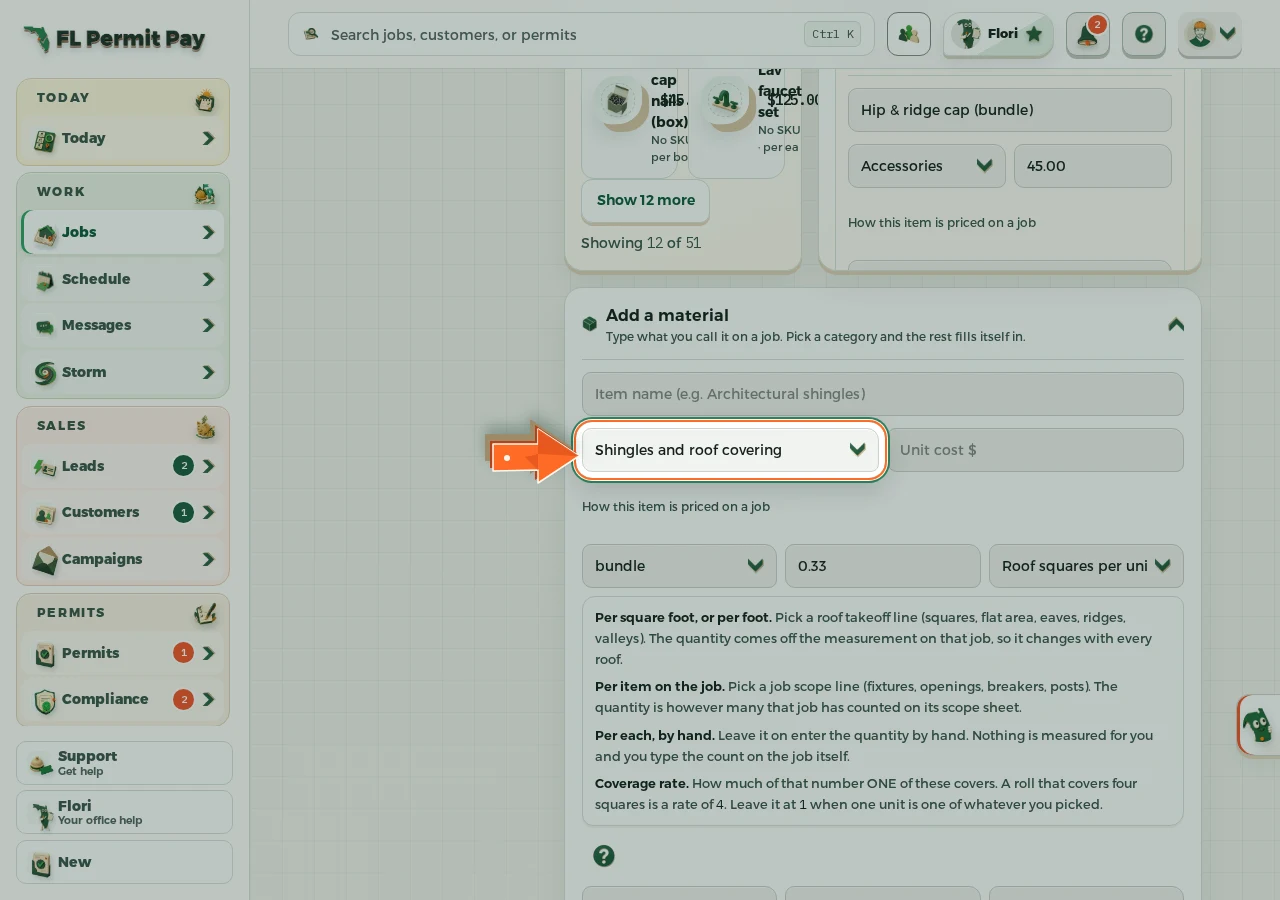
The real screen - the arrow marks the control. Tap to see it full size. - 4
Give each one a cost
What you pay for one, before waste. Every margin you are ever shown is measured from this.
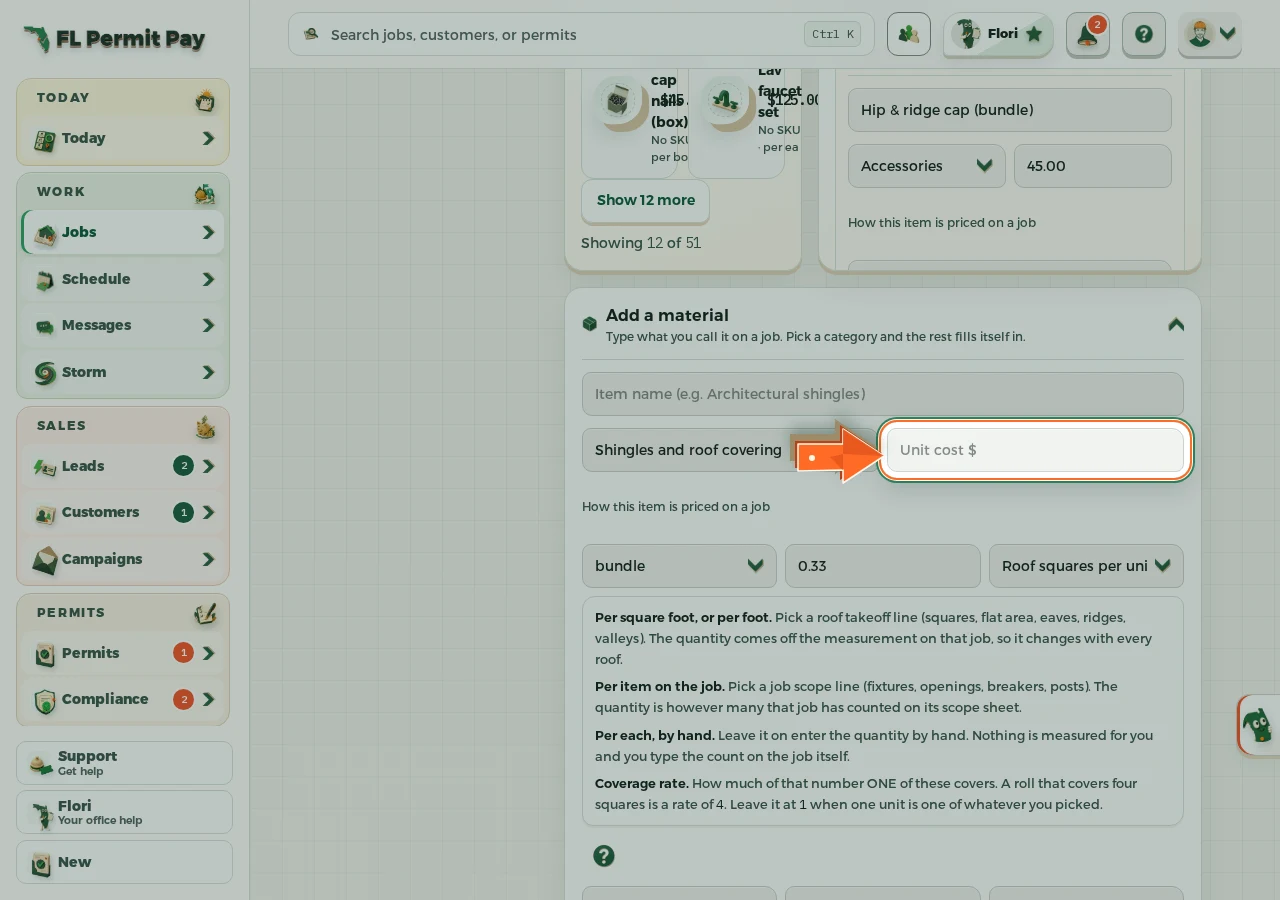
The real screen - the arrow marks the control. Tap to see it full size. - 5
Say what one of them is
The unit you buy it in: a bundle, a square, a roll, a box, a foot, or simply each.
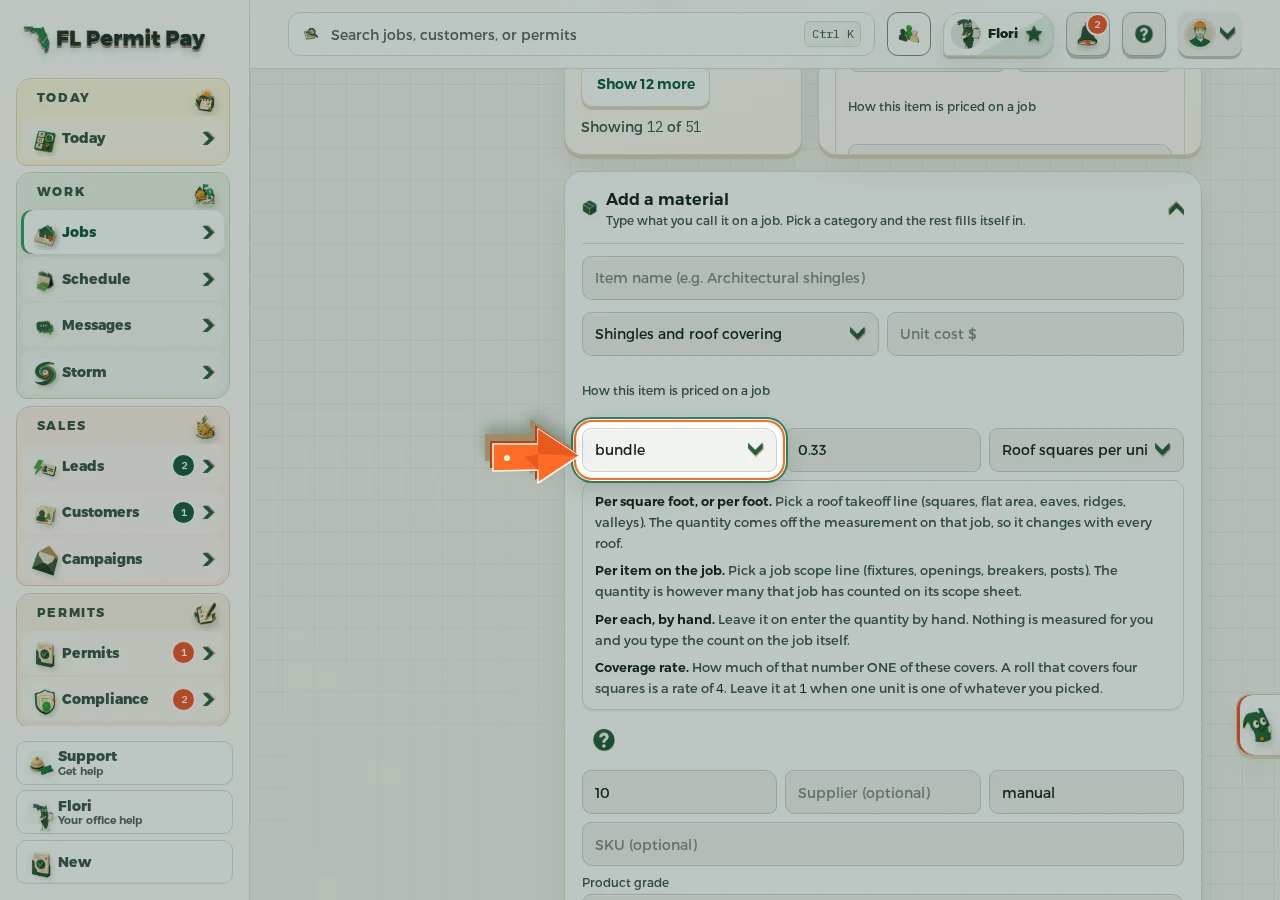
The real screen - the arrow marks the control. Tap to see it full size. - 6
Give each one a basis
Per square foot off a takeoff, per item counted on the job scope sheet, or typed by hand.
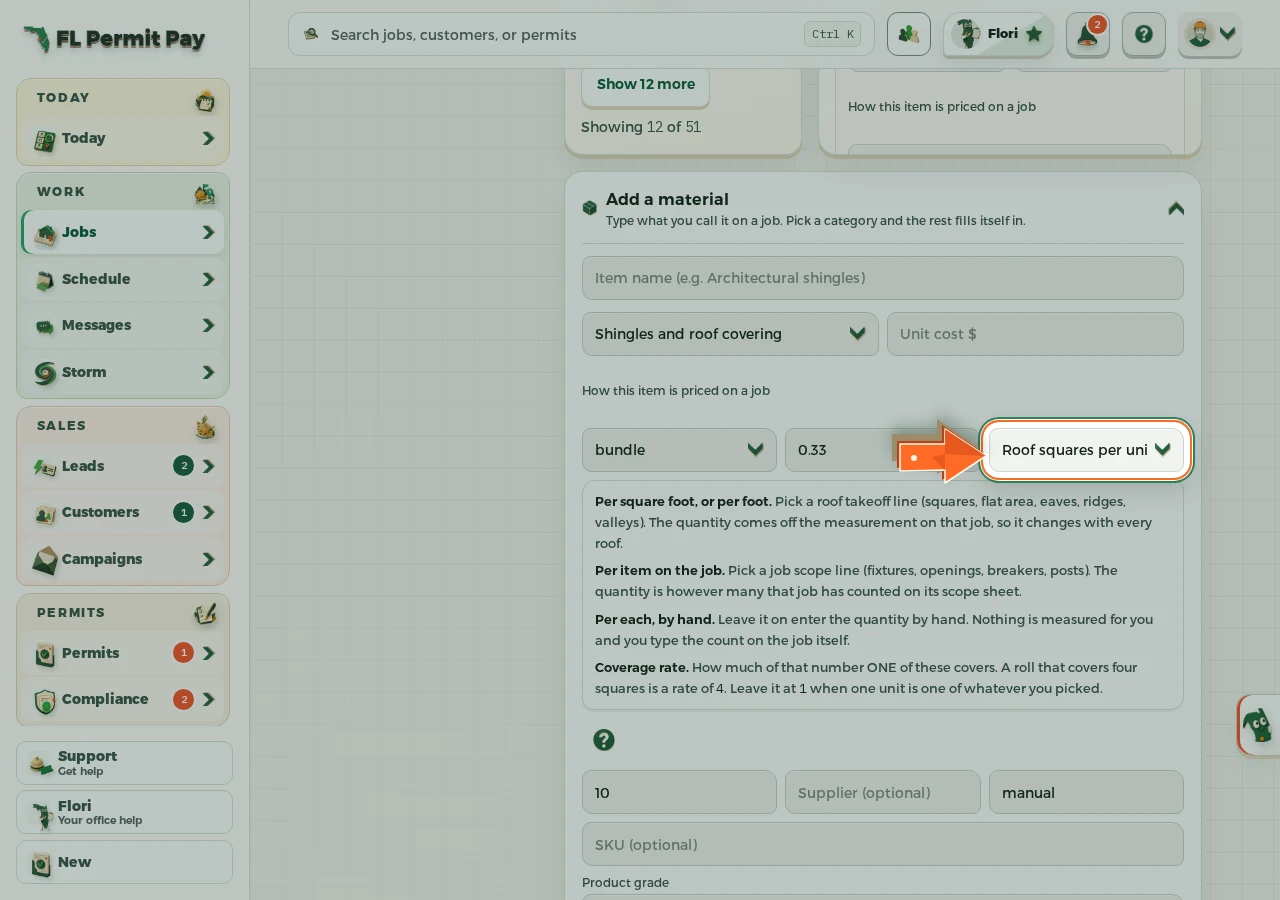
The real screen - the arrow marks the control. Tap to see it full size. - 7
Say how much one of them covers
A roll that covers four squares is a rate of four. One unit per square, foot or item is one.
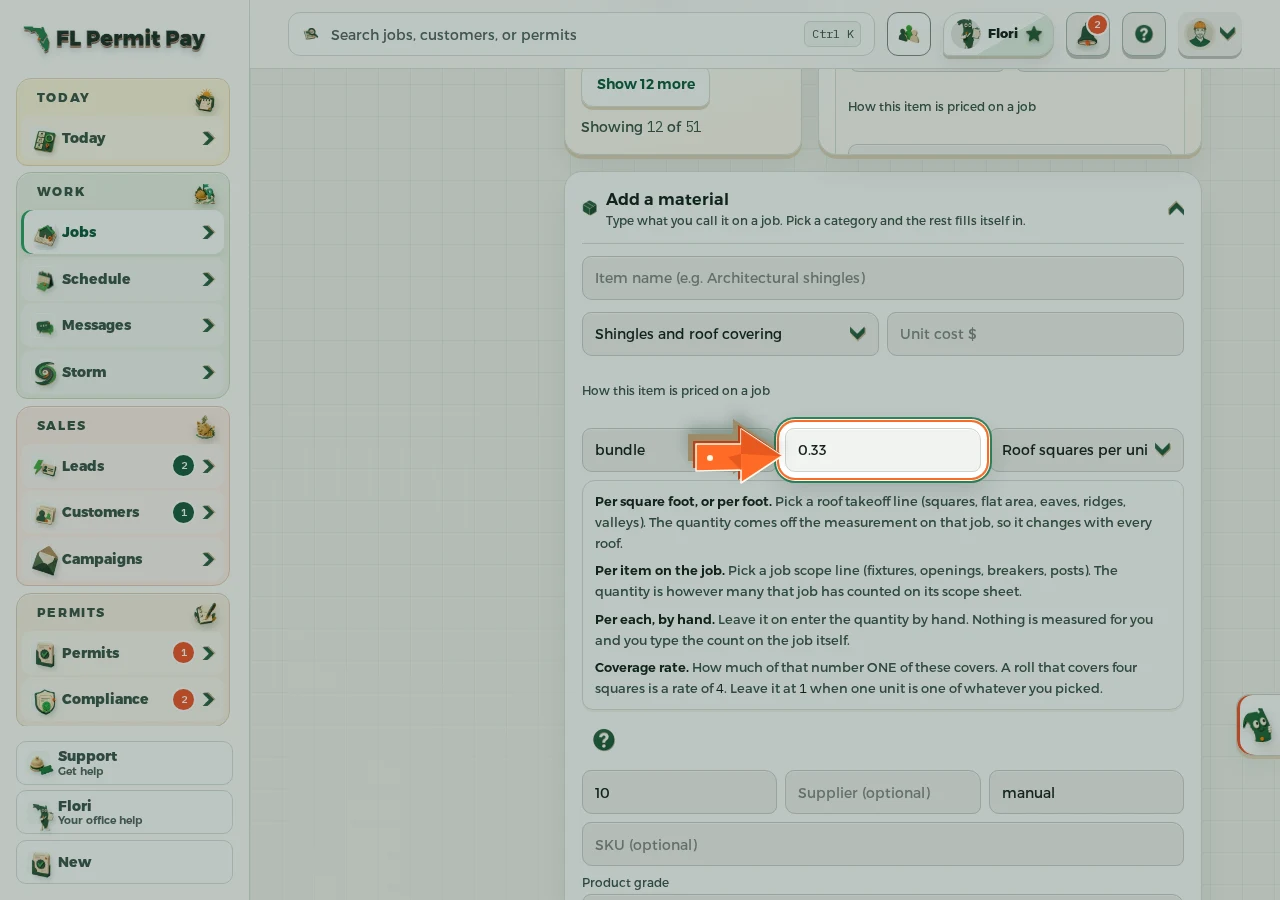
The real screen - the arrow marks the control. Tap to see it full size. - 8
Add the waste you always buy
Ten percent means you order a tenth more than the roof measured, so offcuts are in the price instead of out of your pocket.
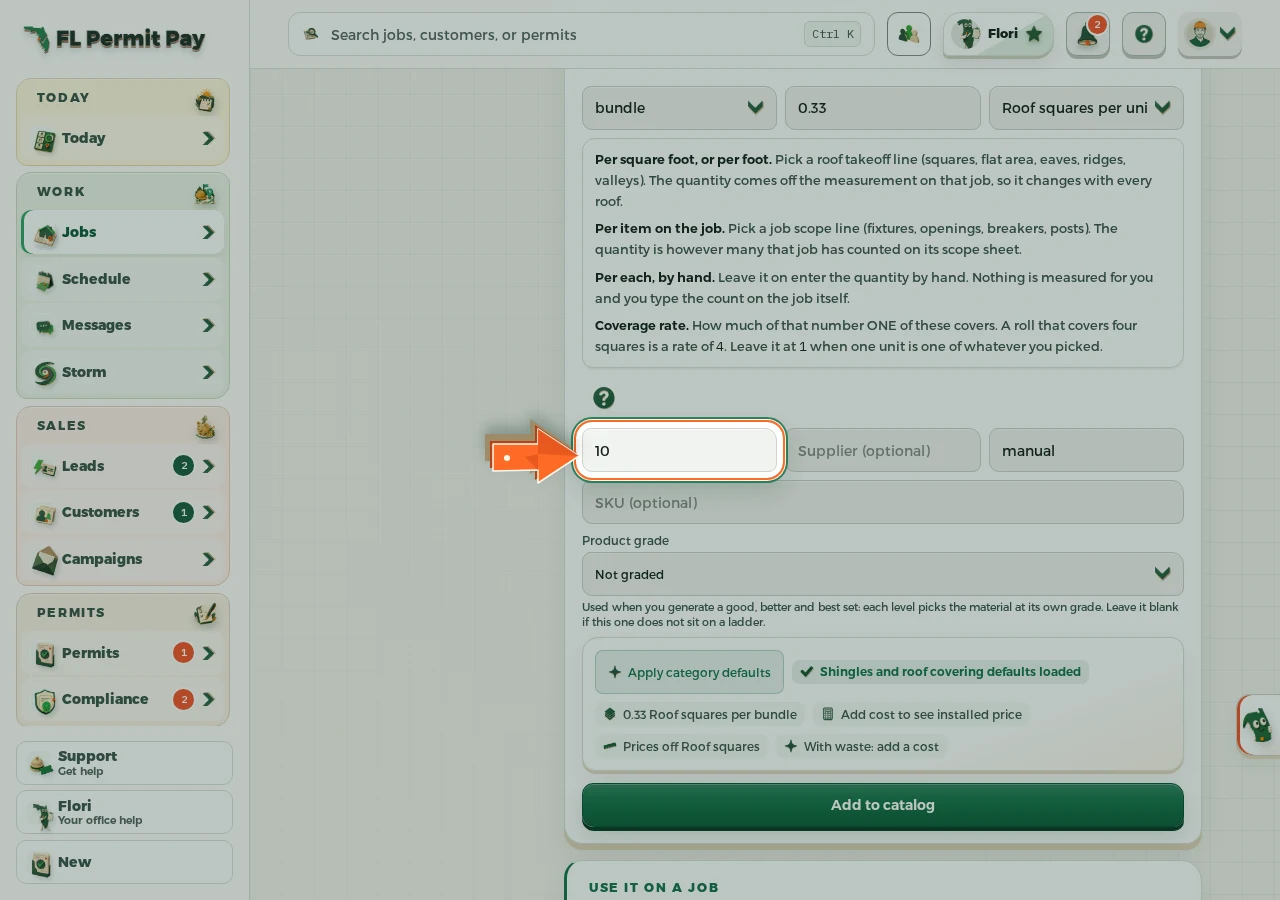
The real screen - the arrow marks the control. Tap to see it full size. - 9
Say who you buy it from
Two suppliers rarely quote the same price, so the name is what makes the cost beside it mean anything later. Typing it fills the Source field beside it for you.
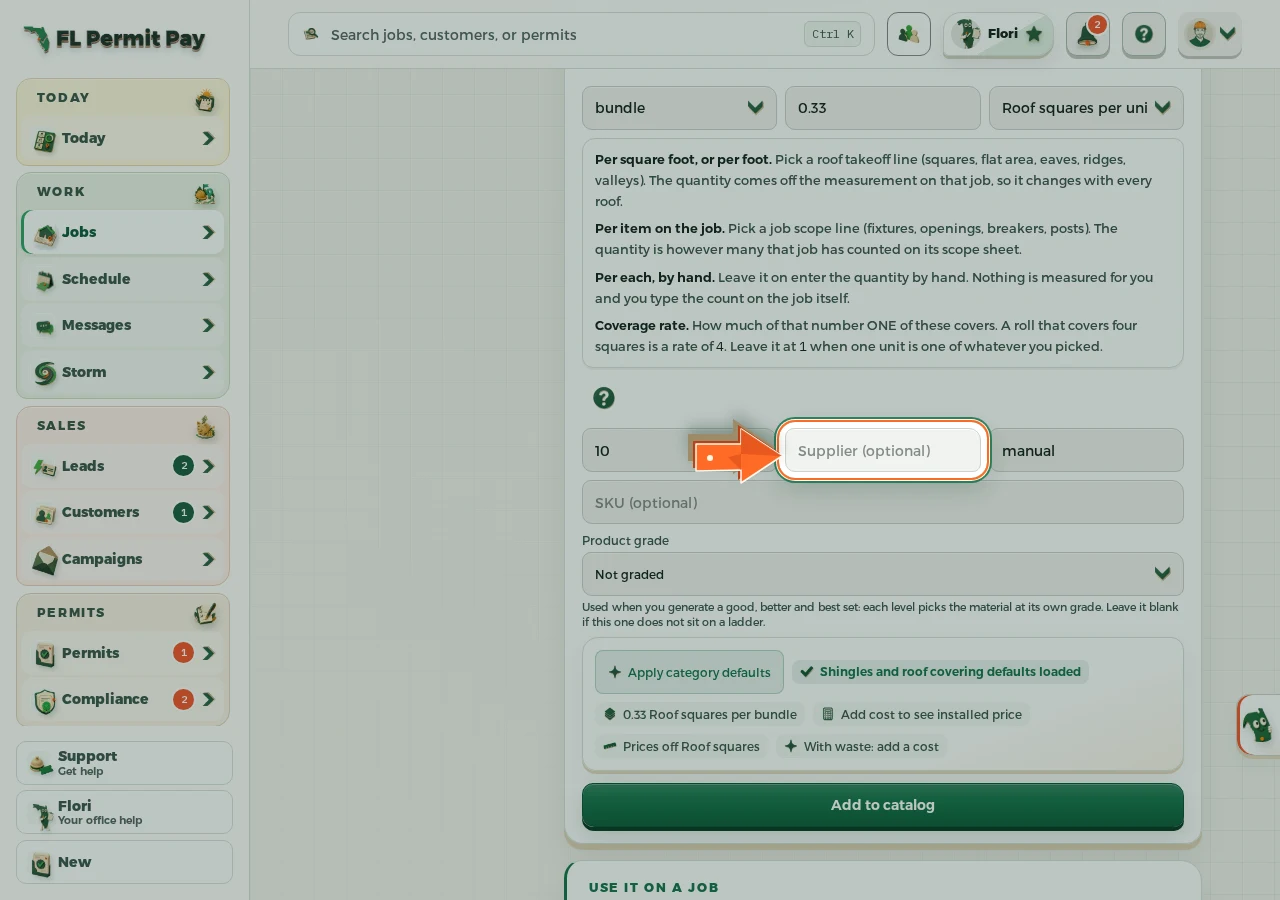
The real screen - the arrow marks the control. Tap to see it full size. - 10
Put their product number on it
It is what makes an order match the quote when somebody at the counter asks which one you meant.
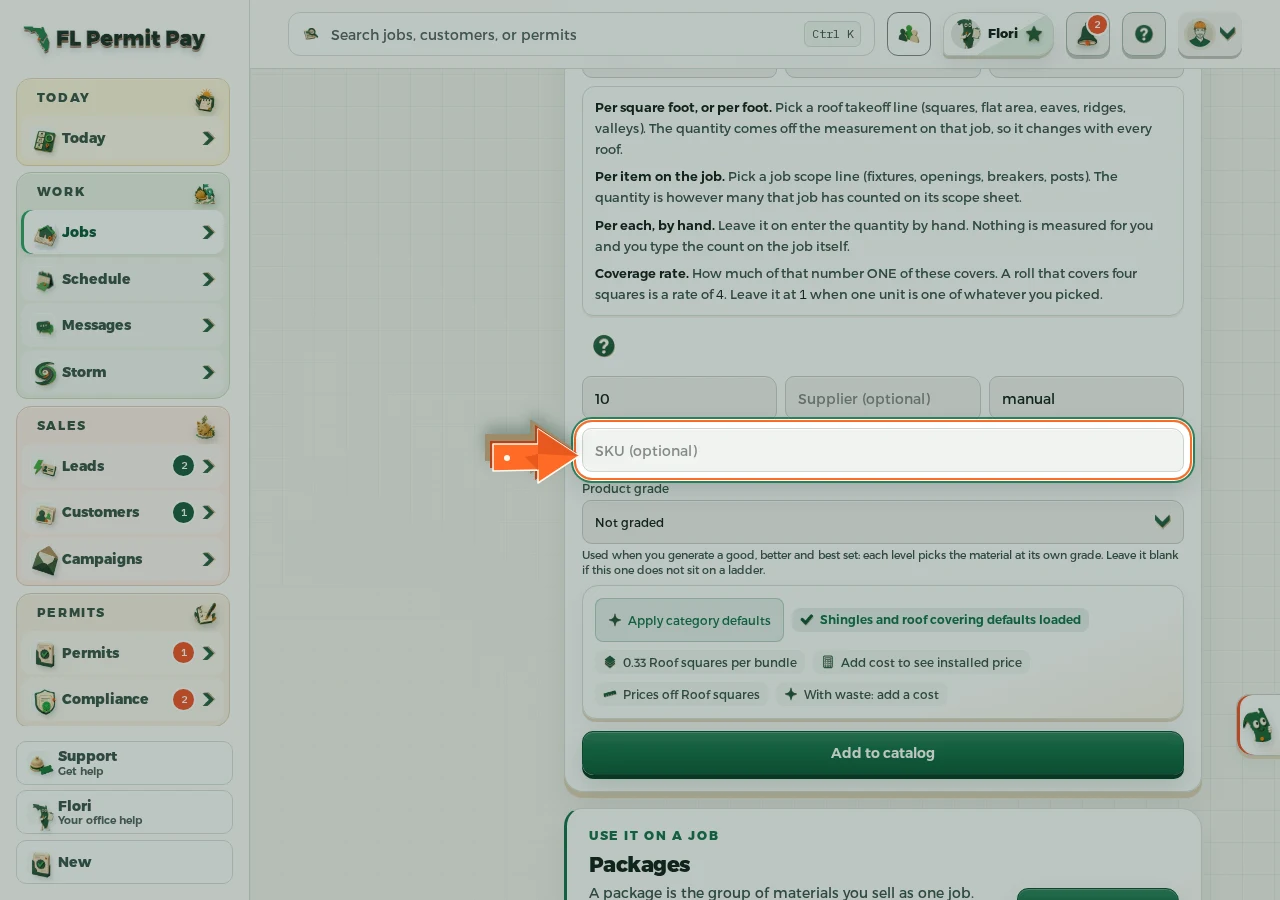
The real screen - the arrow marks the control. Tap to see it full size. - 11
Say where it sits on good, better, best
Only if it belongs on a ladder. It is how a good, better and best set gets built for you later.
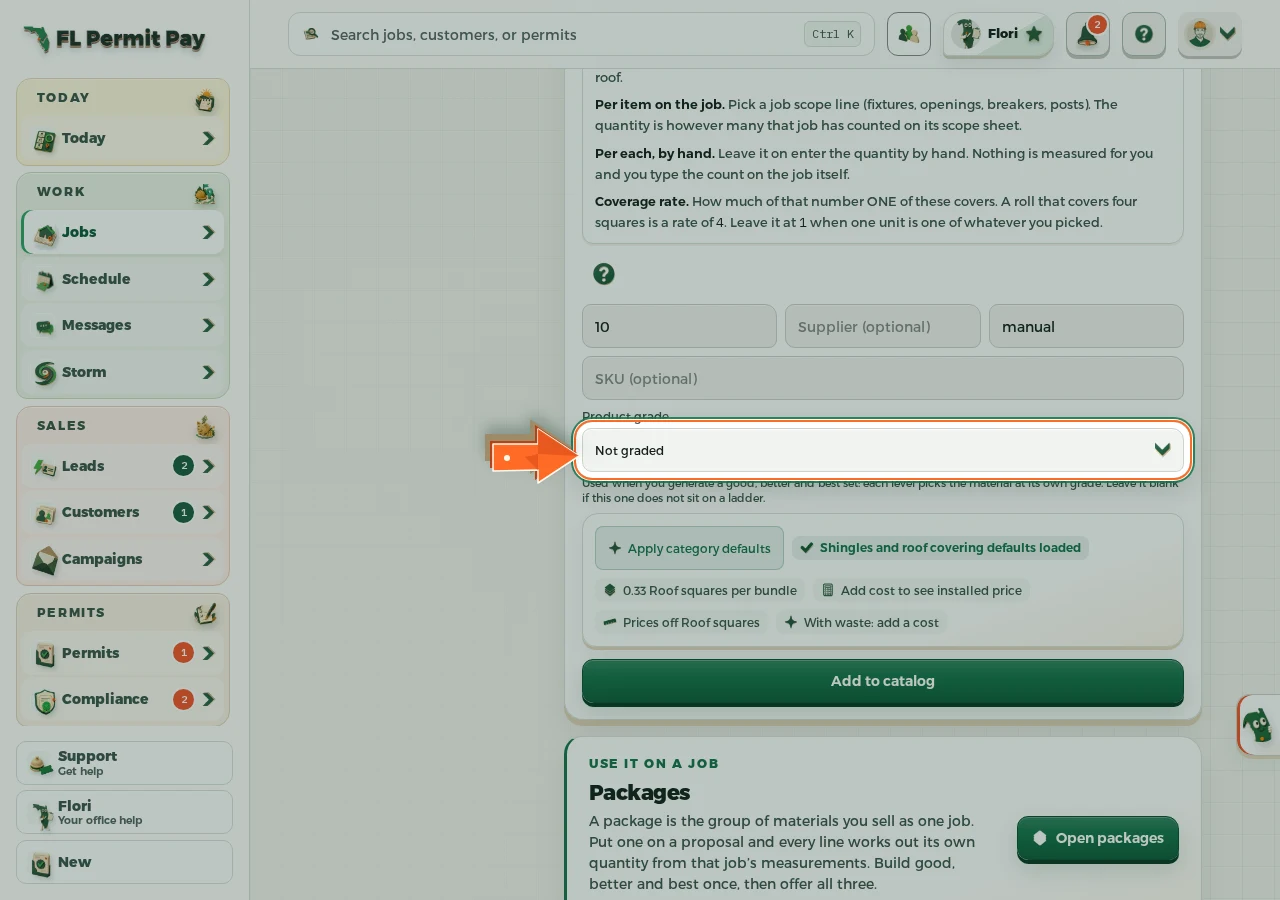
The real screen - the arrow marks the control. Tap to see it full size. - 12
Read what you just built
The strip under the form reads back the coverage, the installed cost per unit you sell by, the proposal basis and the waste-loaded cost, all off what you typed. Apply category defaults sits there too and refills the pricing fields for this category.
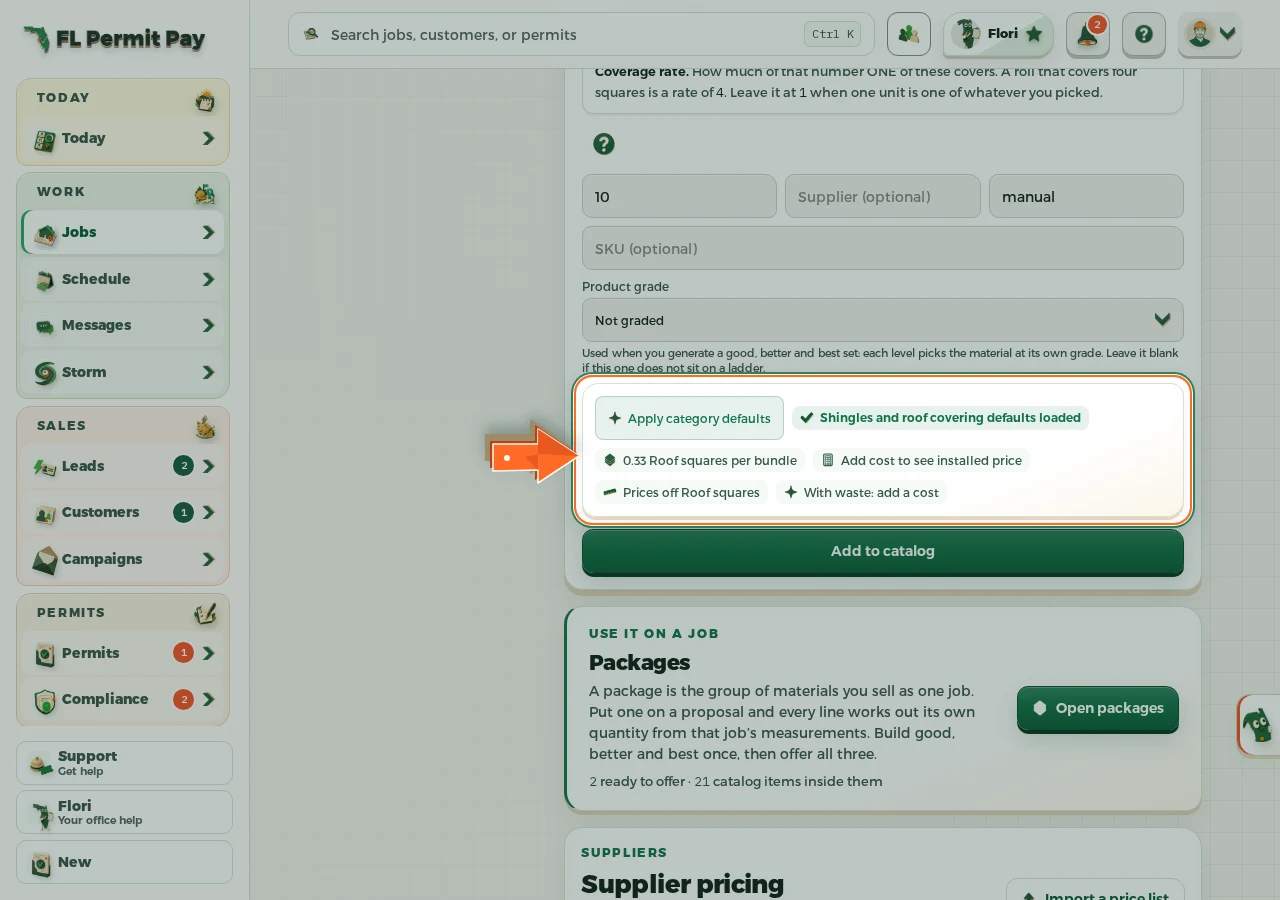
The real screen - the arrow marks the control. Tap to see it full size. - 13
Save it to the price book
A package can only hold materials that are already in here.
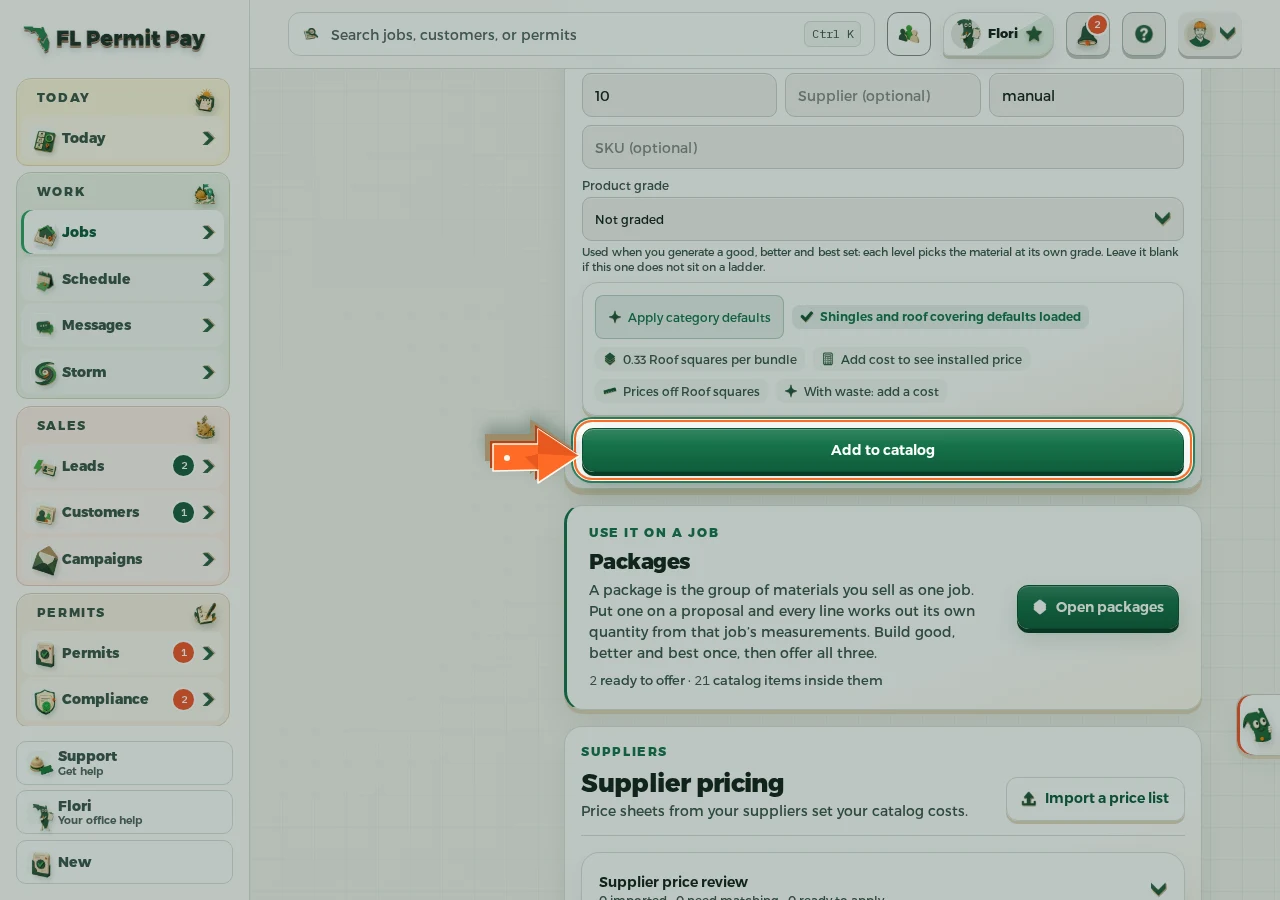
The real screen - the arrow marks the control. Tap to see it full size. - 14
Name the package
Call it what you call it on a job. Shingle roof replacement, not SKU-1180.
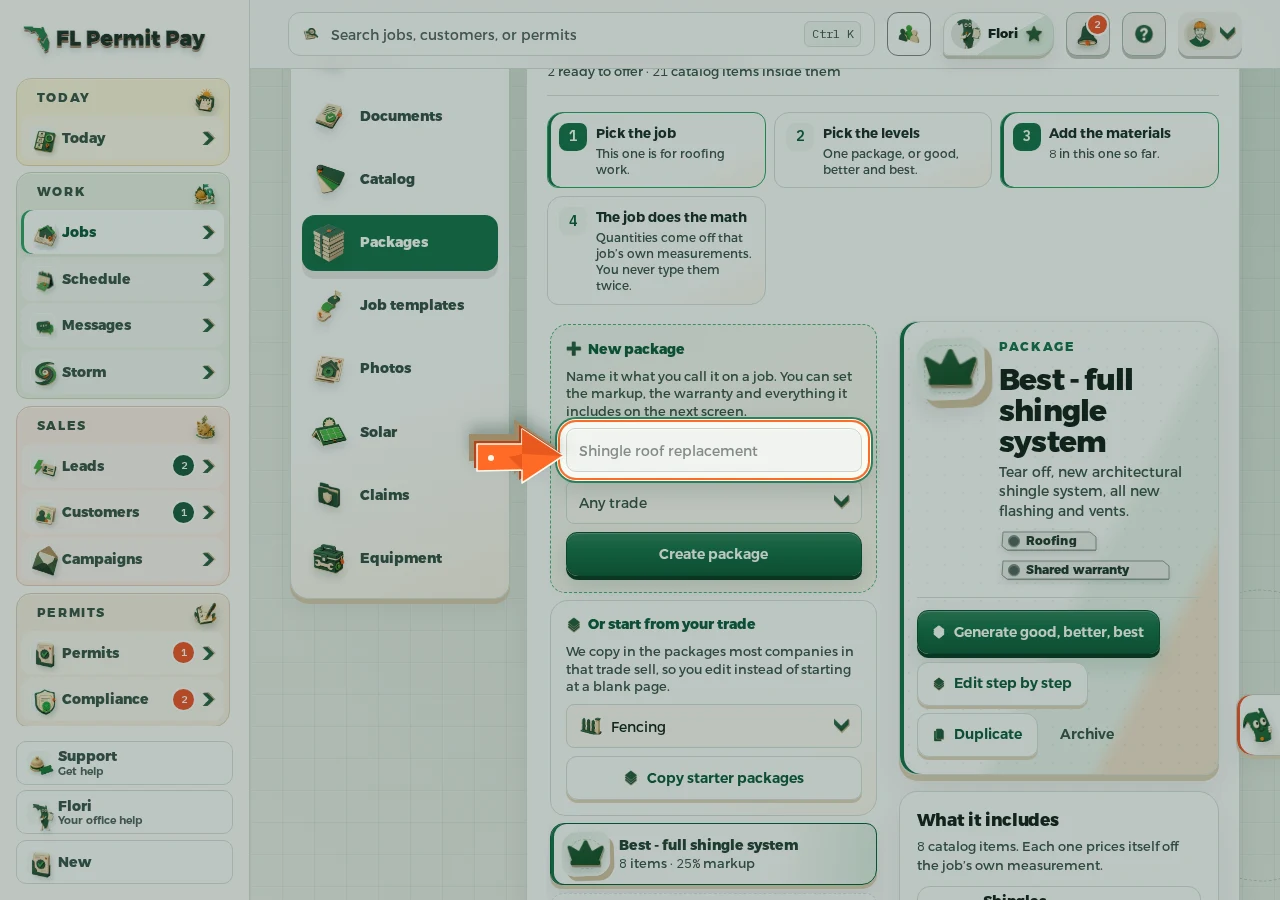
The real screen - the arrow marks the control. Tap to see it full size. - 15
Create it
An empty package, ready for the materials that go in it.
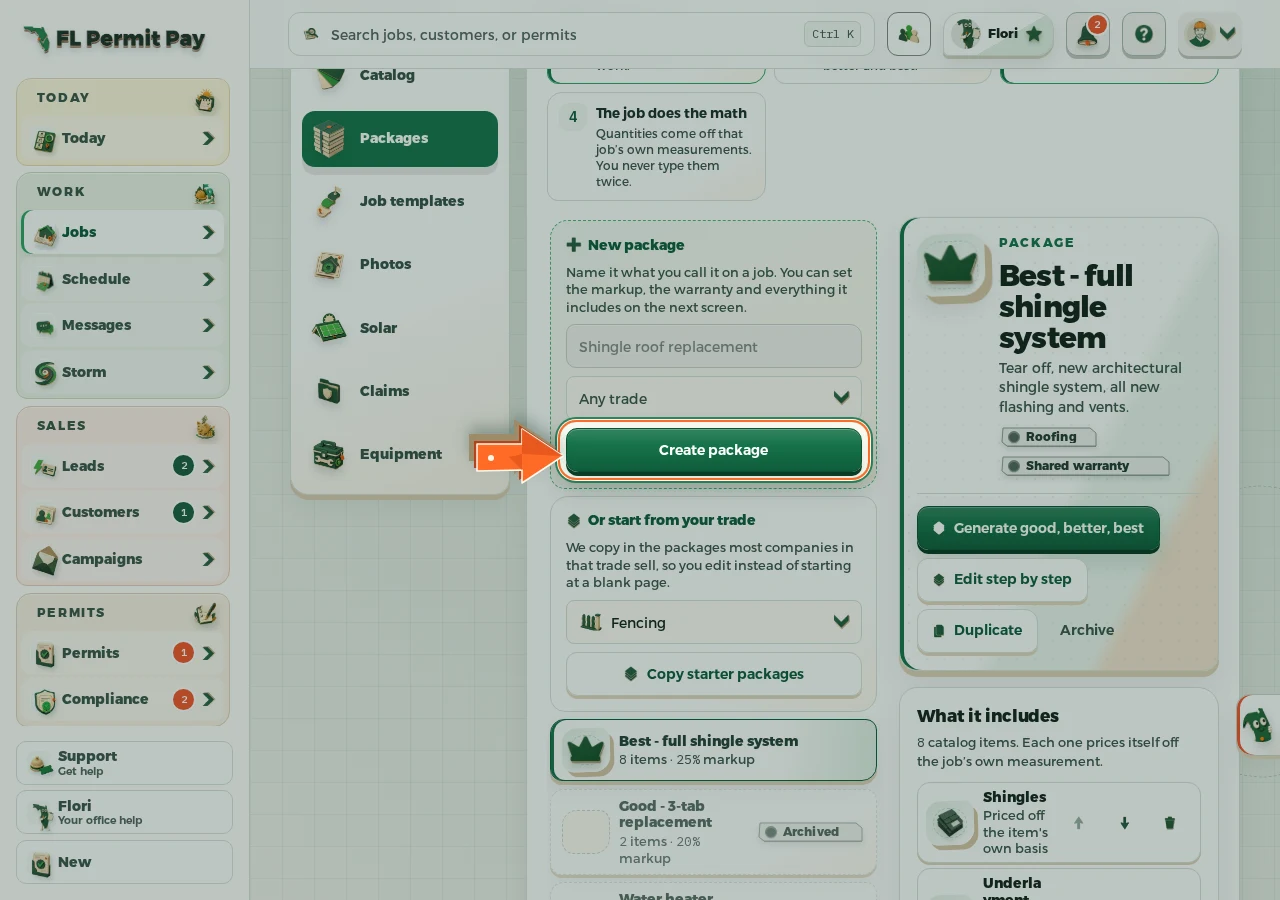
The real screen - the arrow marks the control. Tap to see it full size. - 16
Search, then tick the material's row
A real price book runs to hundreds of rows, so you search instead of scrolling past everything you do not want. Tap the row itself: the ticked one is what gets added, and it starts on the first row rather than on yours.
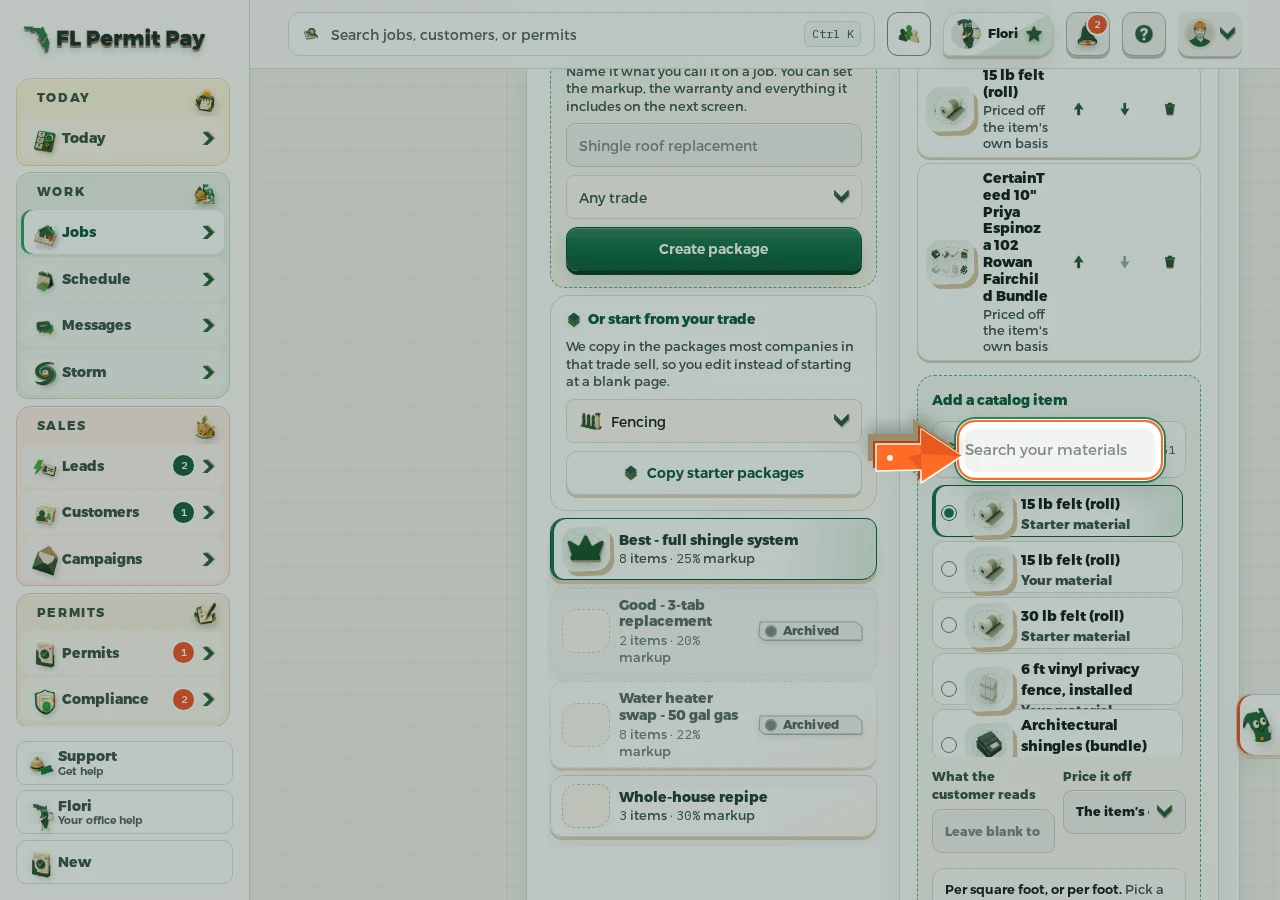
The real screen - the arrow marks the control. Tap to see it full size. - 17
Say what the customer reads on that line
Leave it blank to use the material name. Your supplier's product name is rarely the sentence a homeowner wants.
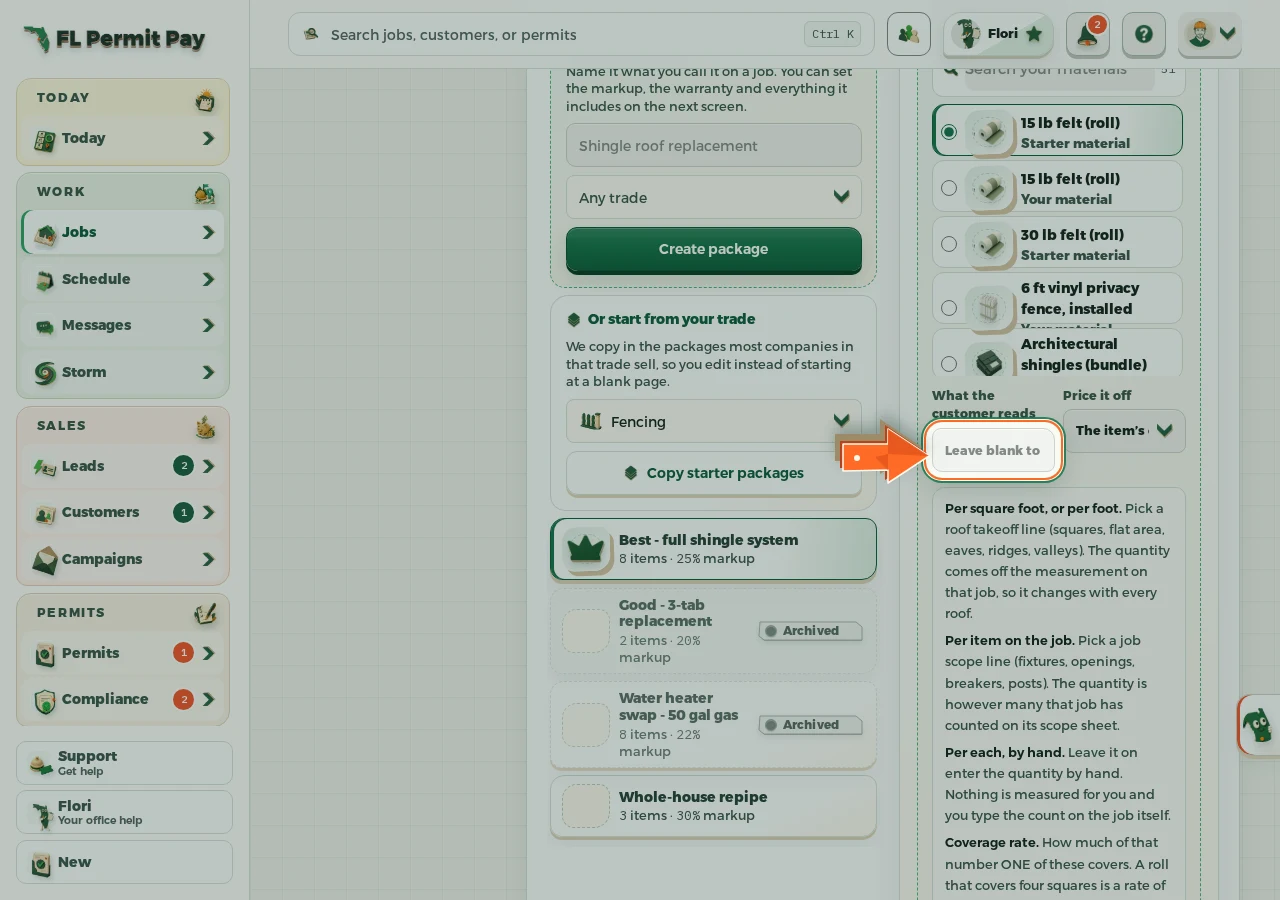
The real screen - the arrow marks the control. Tap to see it full size. - 18
Choose how this line prices, if it differs here
Leave it blank and the material keeps whatever basis it has in the price book.
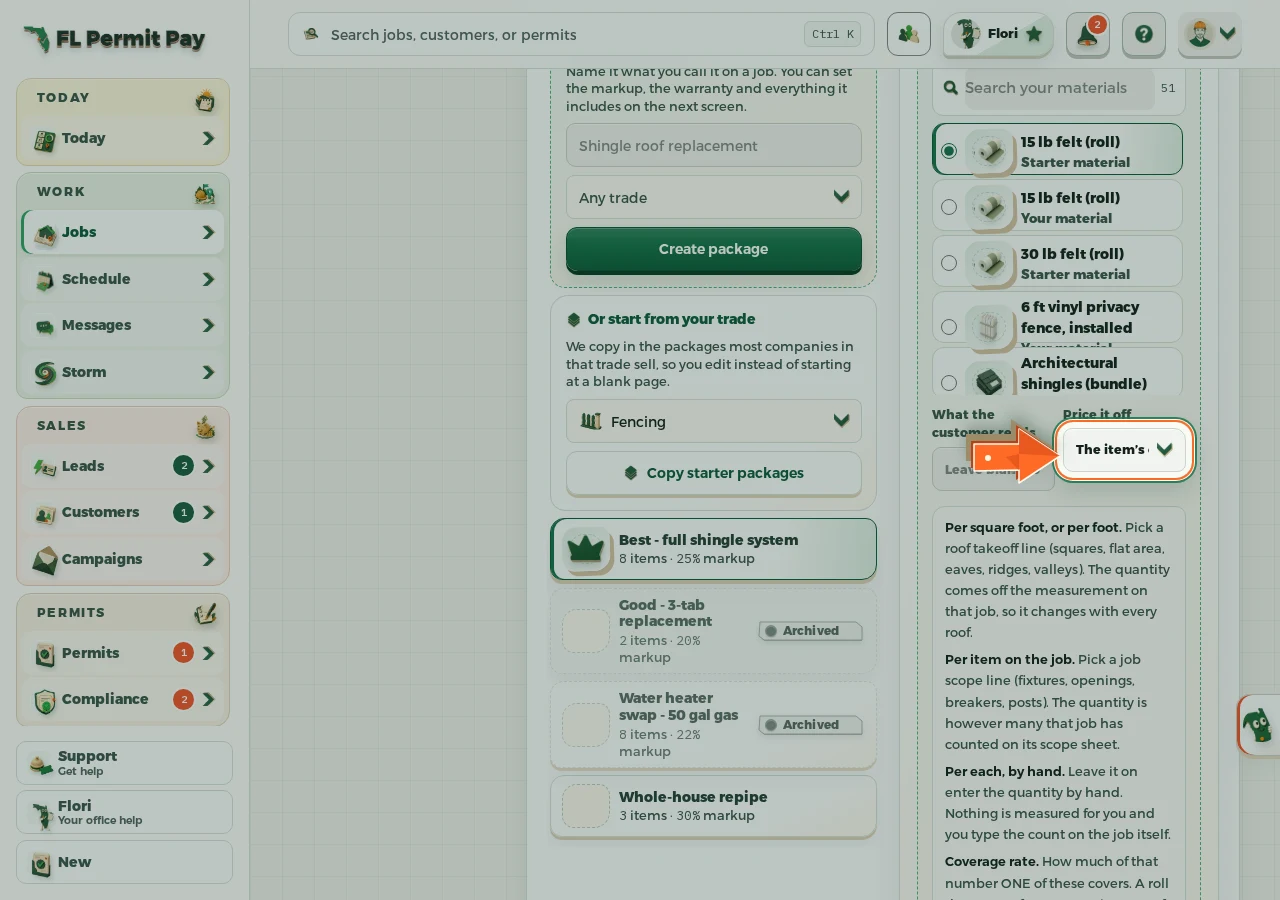
The real screen - the arrow marks the control. Tap to see it full size. - 19
Decide if it is always in
Ticked means part of the price. Unticked means an extra somebody chooses on the day.
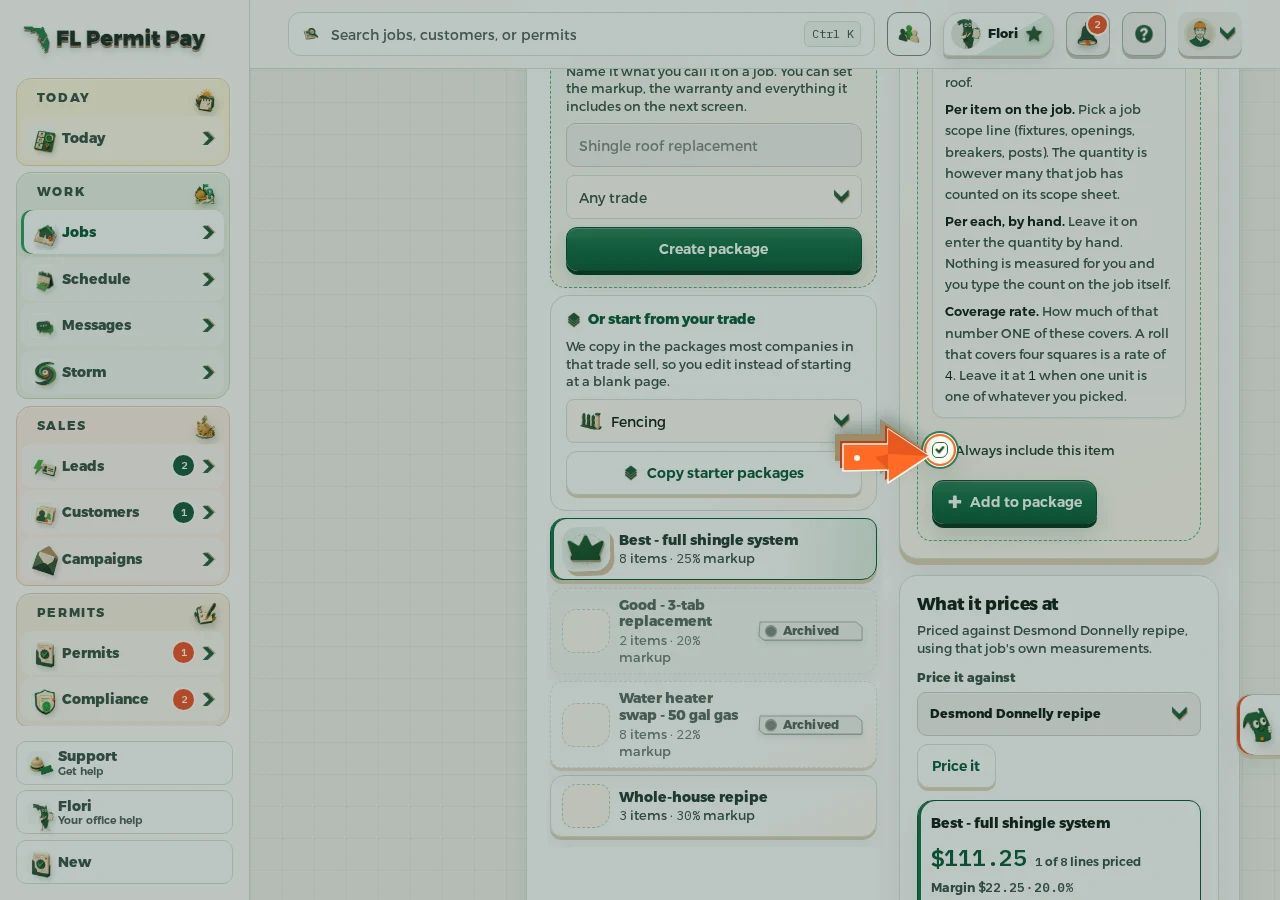
The real screen - the arrow marks the control. Tap to see it full size. - 20
Add the material to the package
Repeat for everything the job includes. Quantities come off each job's own measurements.
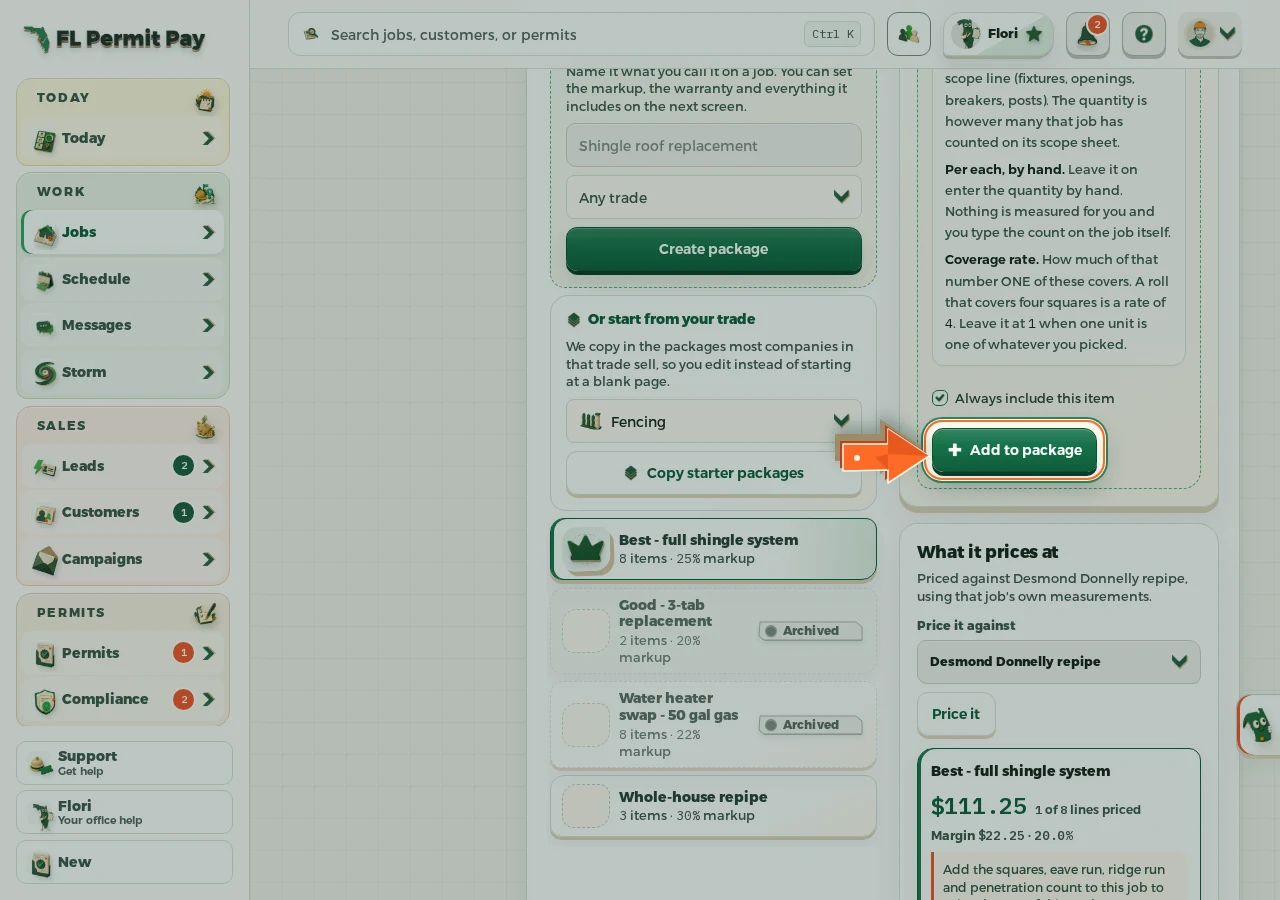
The real screen - the arrow marks the control. Tap to see it full size. - 21
Set what the package sells at
The difference between what the materials cost you and what the customer pays, on every job it lands on.
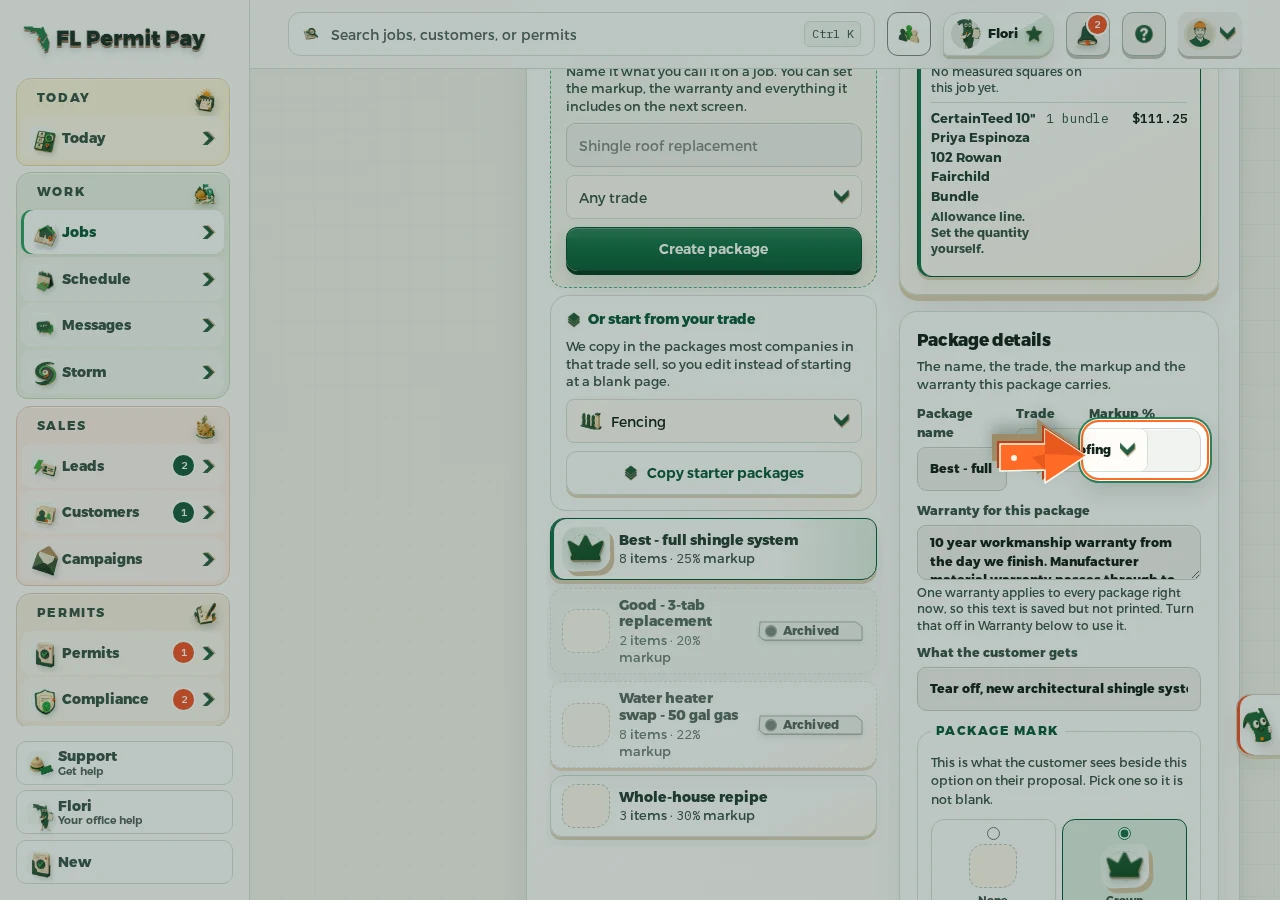
The real screen - the arrow marks the control. Tap to see it full size. - 22
Write the warranty this one carries
Your own words, or blank if this package carries none. Two packages you sell side by side rarely carry the same one.
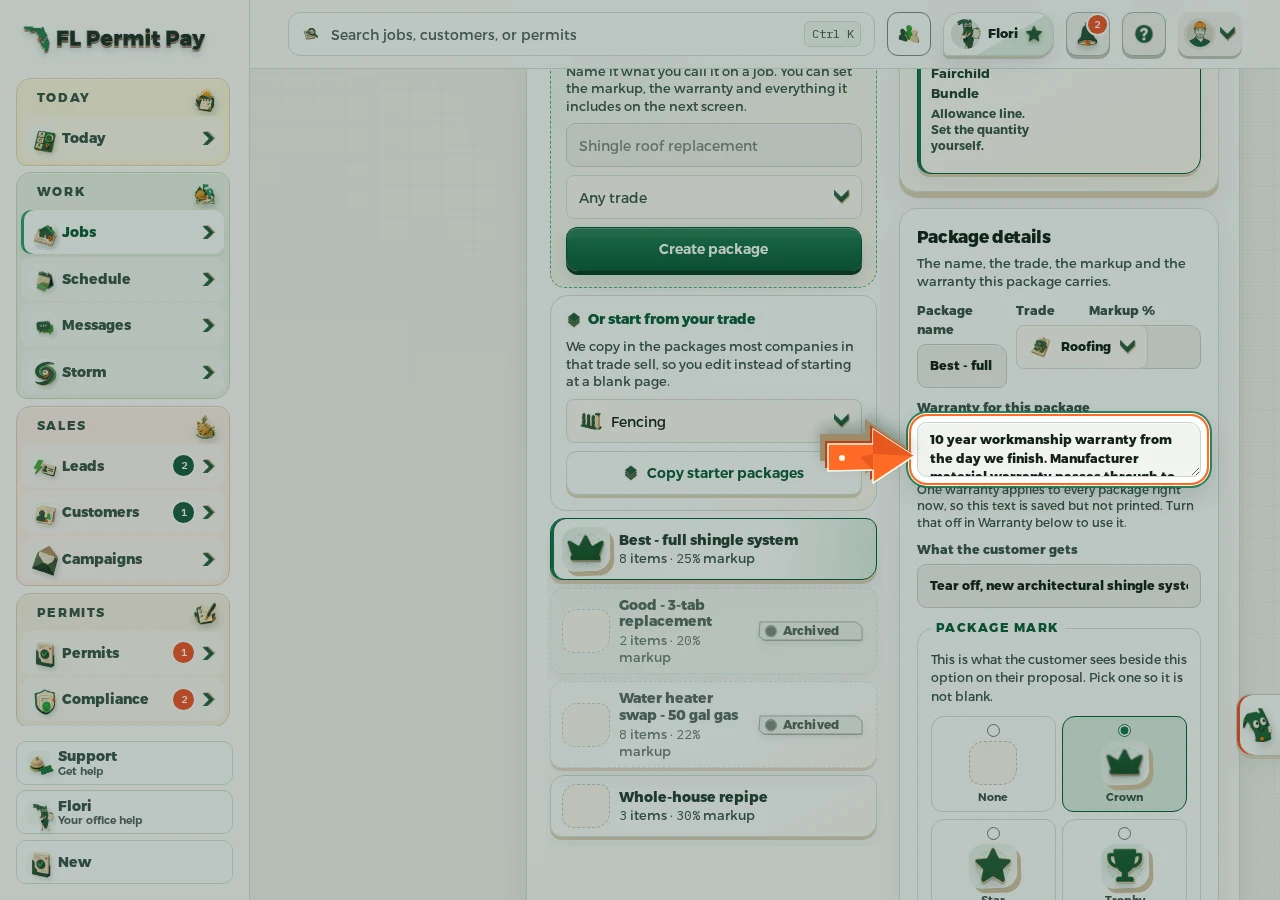
The real screen - the arrow marks the control. Tap to see it full size. - 23
Say what the customer gets
One line the homeowner reads under the package name, in words that make better cost more than good.
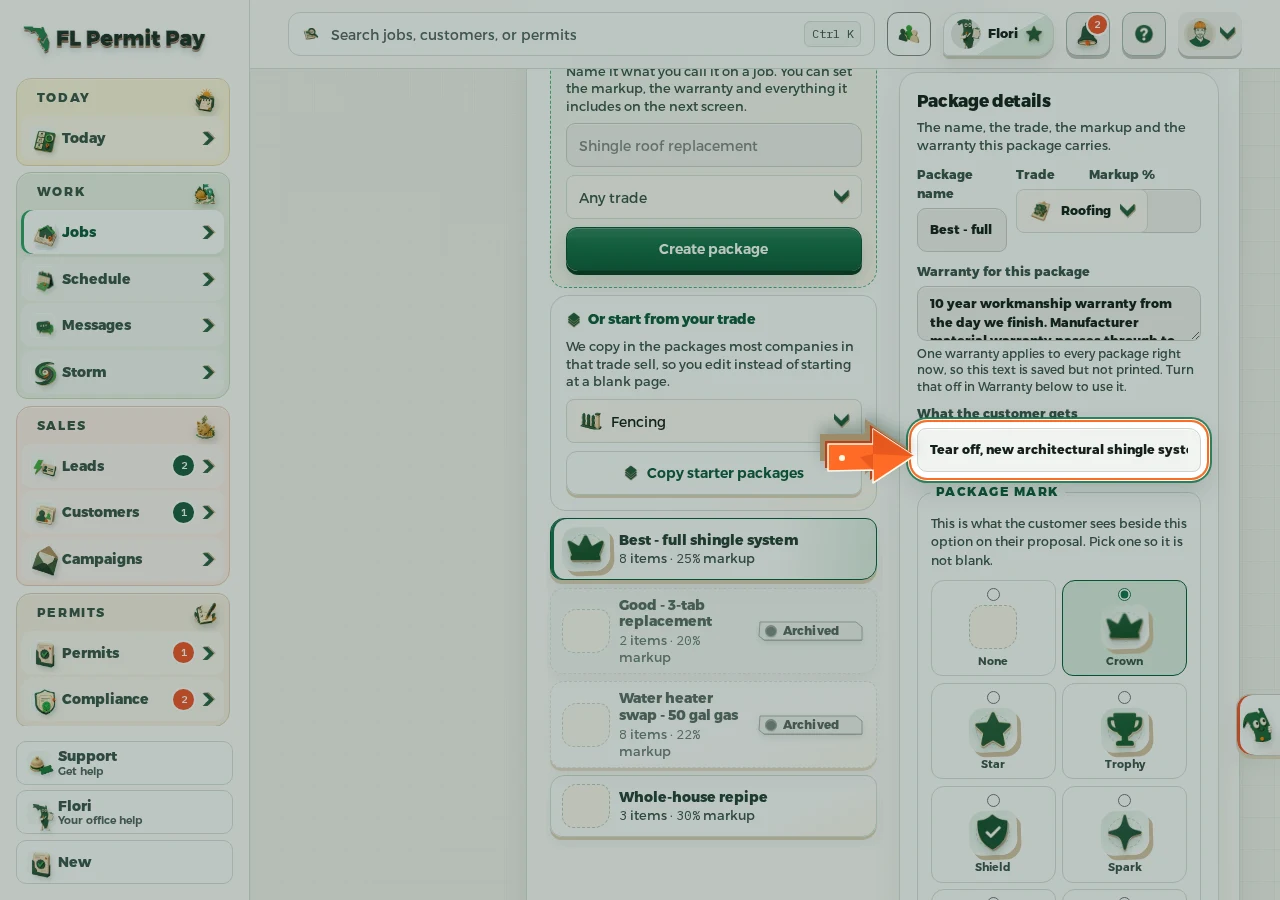
The real screen - the arrow marks the control. Tap to see it full size. - 24
Give it a mark you can spot
How you find the right package in a builder full of them without reading every name.
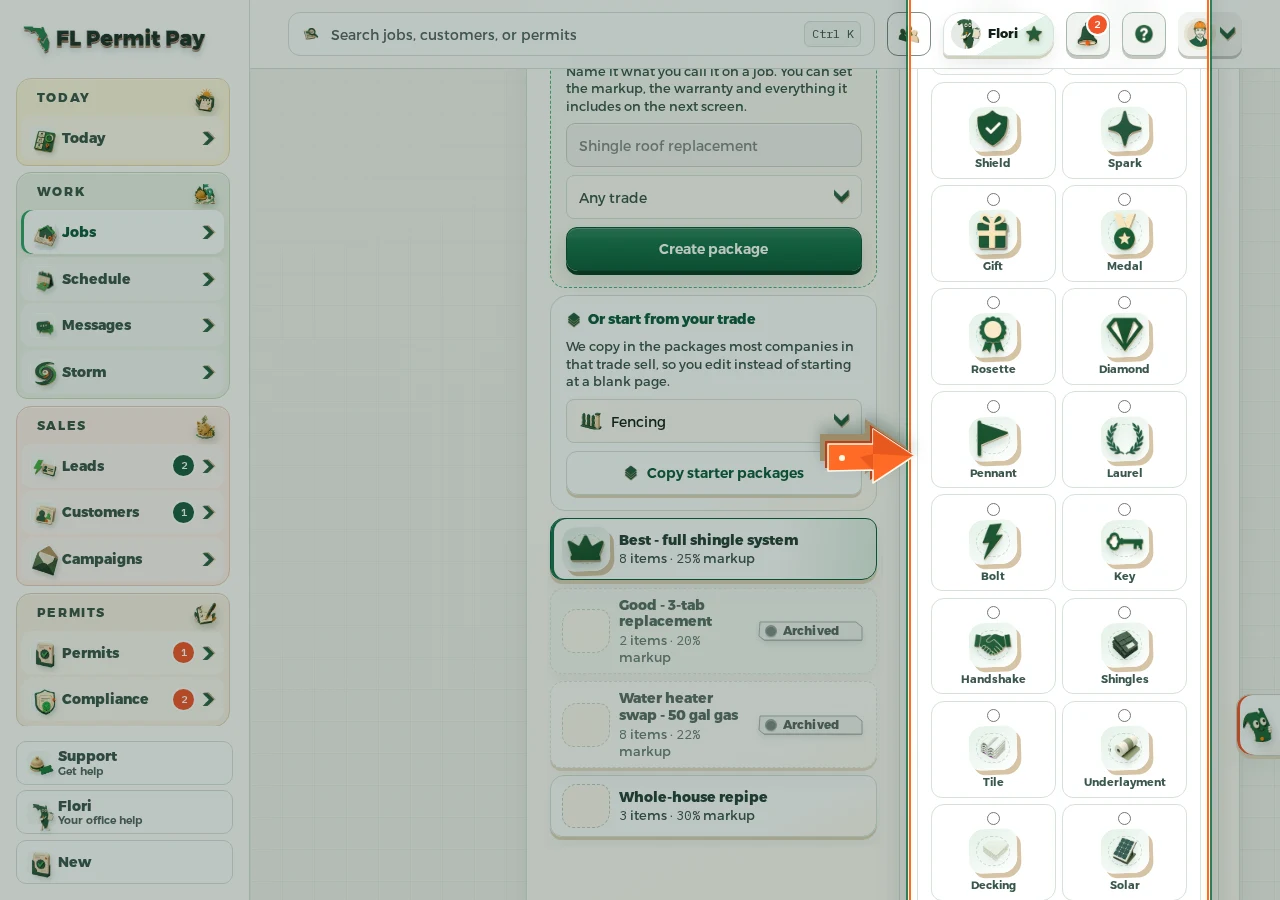
The real screen - the arrow marks the control. Tap to see it full size. - 25
Save the package
Until this is pressed it still prices at whatever it carried before.
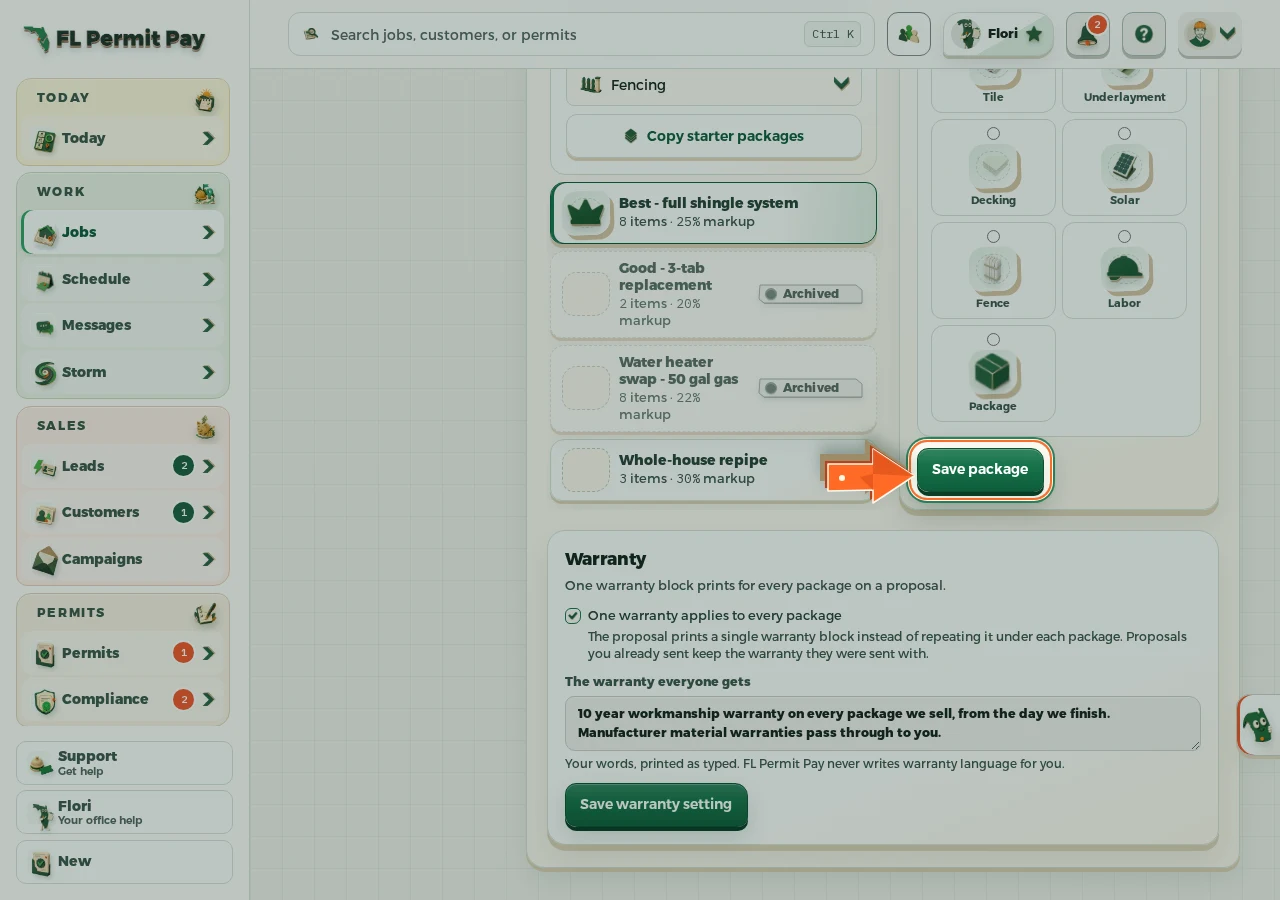
The real screen - the arrow marks the control. Tap to see it full size. - 26
Turn it into good, better and best
Generate good, better, best builds the other two levels off this package, each one taking the material at its own grade. It is what the grade on every material was collected for.
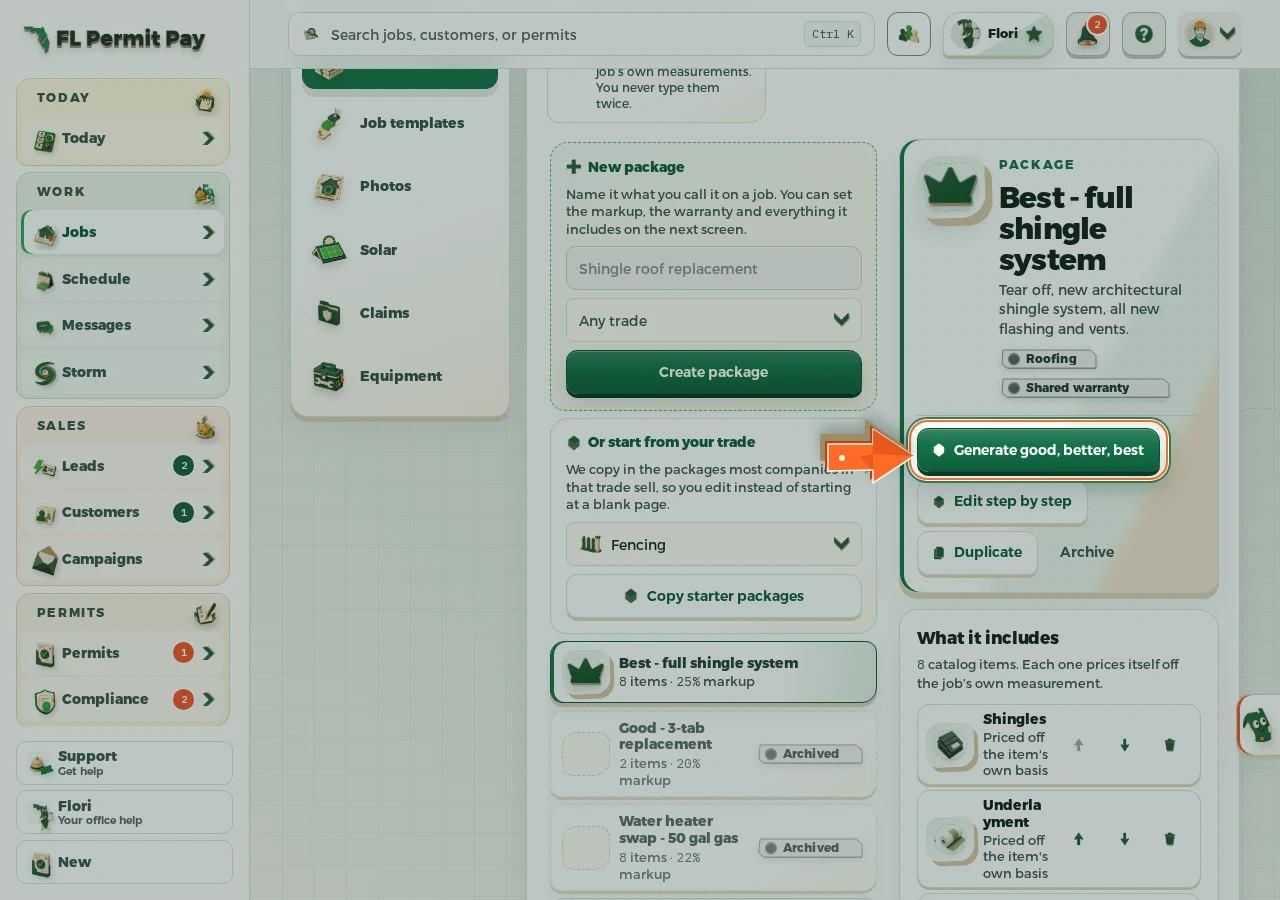
The real screen - the arrow marks the control. Tap to see it full size. - 27
Pick a job you have already measured
The package prices against that job's own numbers, which is the proof your rules are right.
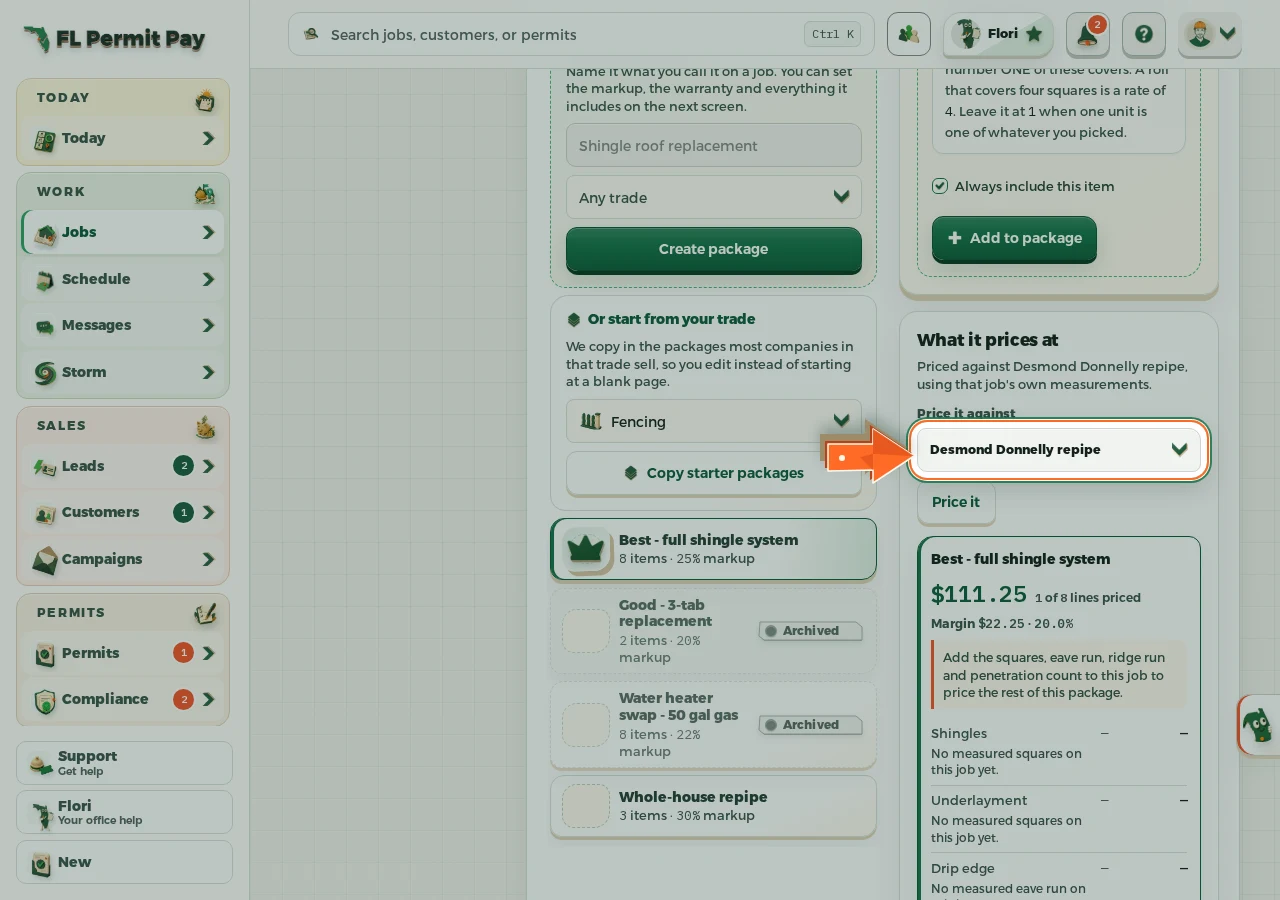
The real screen - the arrow marks the control. Tap to see it full size. - 28
See what the whole package comes to
Every line lands with its quantity, its waste, what it sells for, and any line that could not price says why.
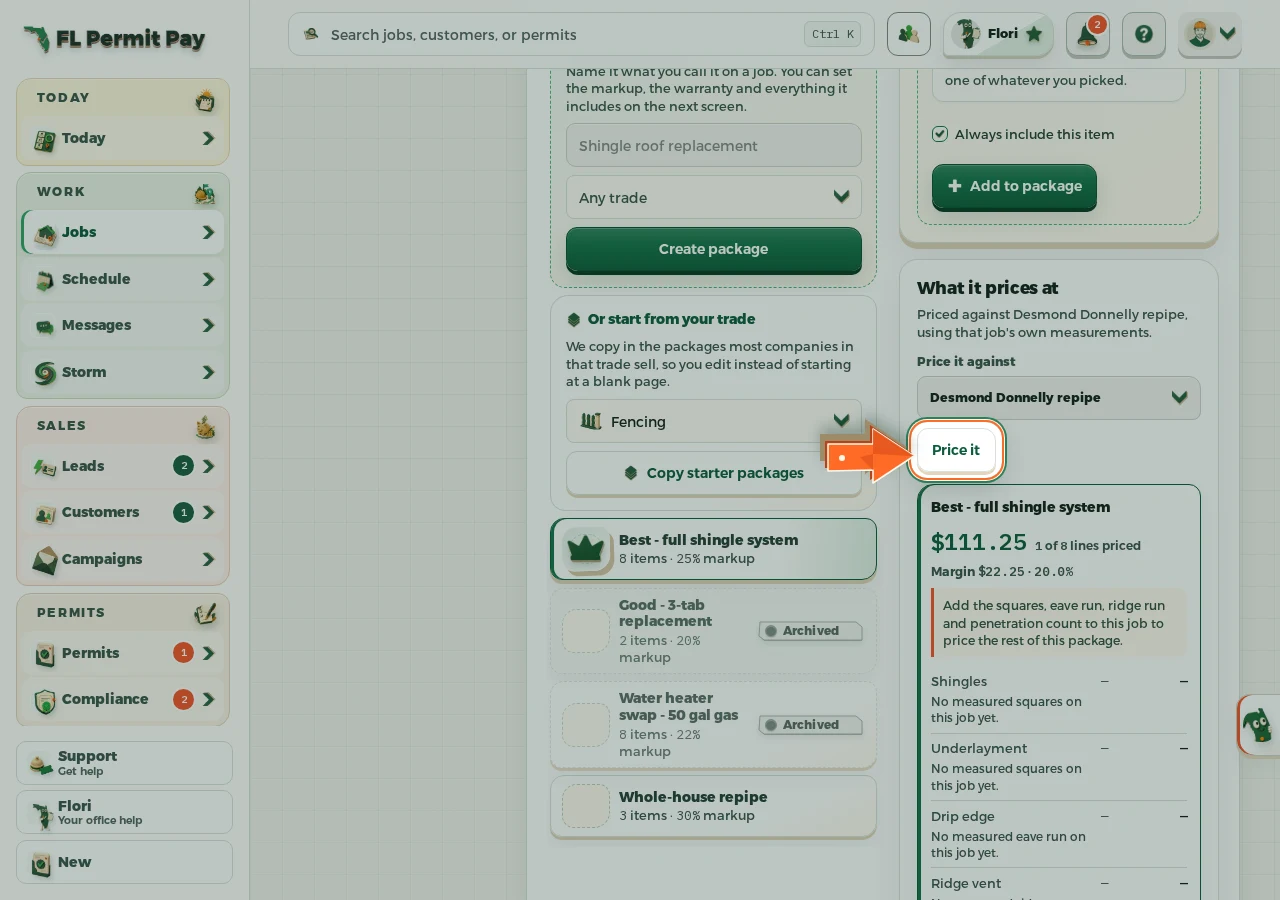
The real screen - the arrow marks the control. Tap to see it full size. - 29
Now price a proposal from this package
Open the proposal on that measured job and the whole option lands priced in one press.
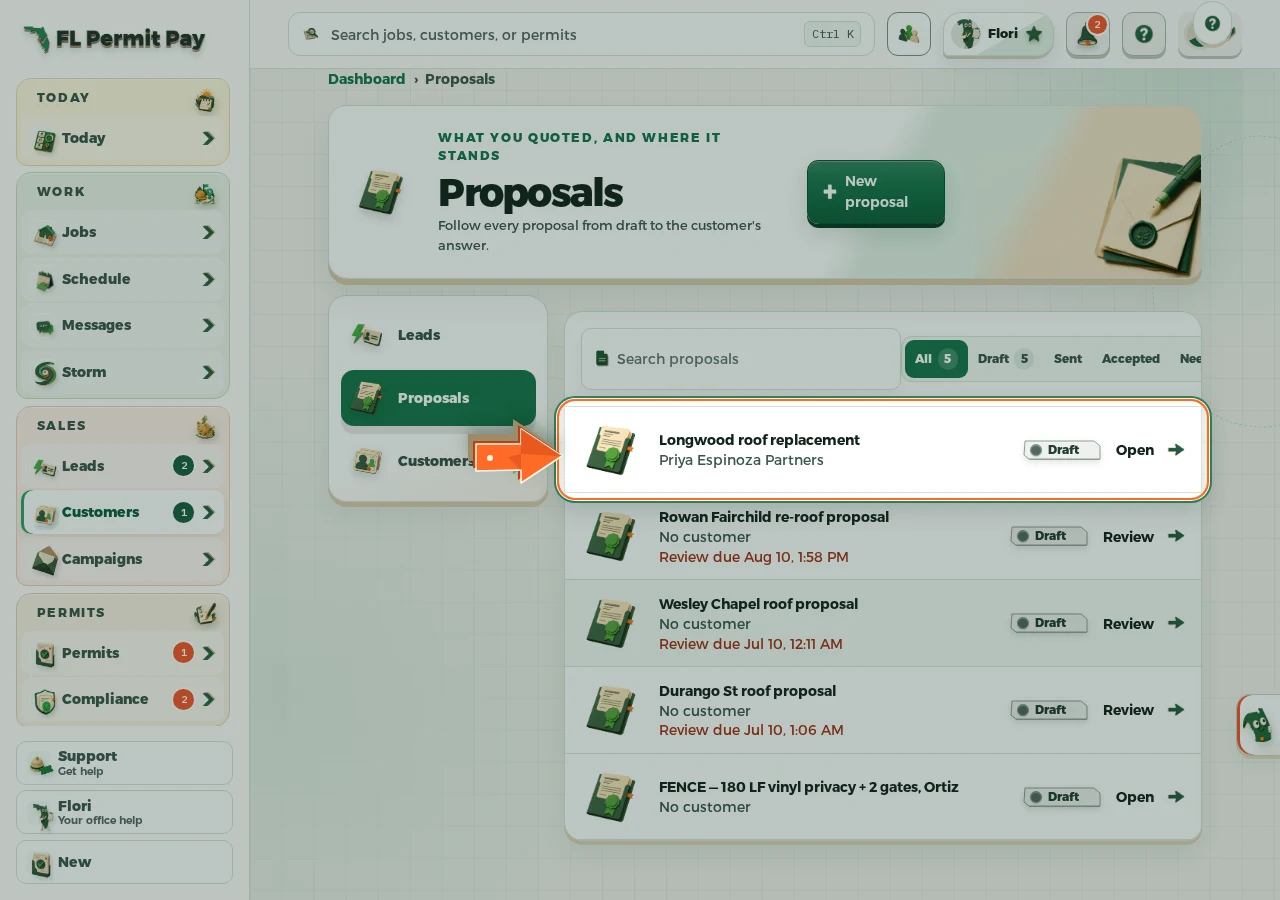
The real screen - the arrow marks the control. Tap to see it full size.
